Docs › Modules › Sales › Operating activity Sales
Sales
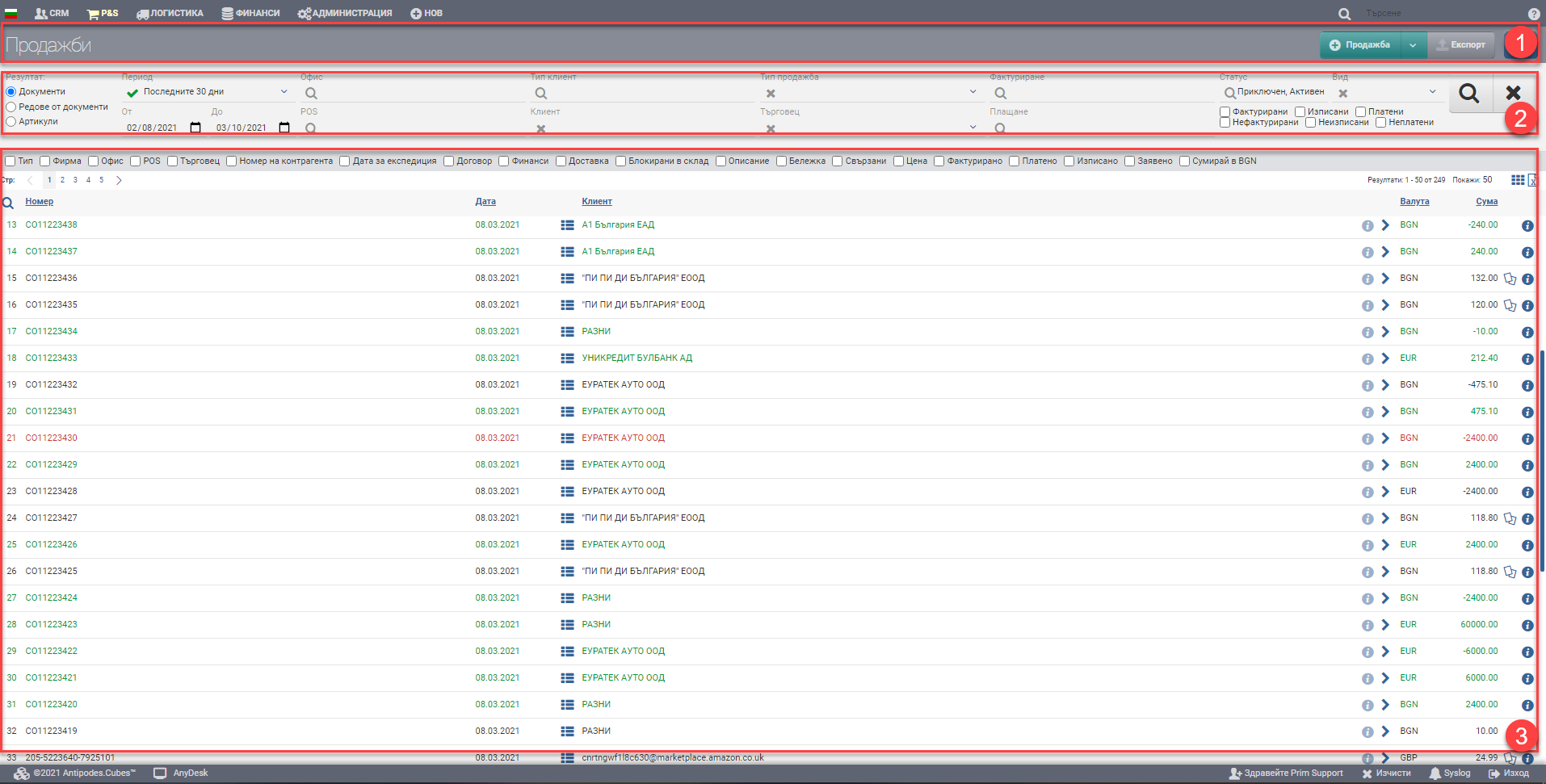
Interface for operational sales activity. Here you get sales information and can filter the result by different criteria. The screen is divided into three main parts: Header (1), Filter (2) and Score (3).
Header (1)
In the Header (1) you see a button with a drop-down menu that allows you to create a Sale or Cancel a Sale. The blue button hides and shows the Filter (2).
There is a third button in the Header- Export Sales, which is only active if you have specified in Filter (2) that your result will be by Document Lines.
Filter (2)
In order to process your sales faster, track their status and development, the system provides you with different ways to filter sales information coming from one or several channels. The search is started with the Magnifying Glass, and the Hicks clears all filters. In the table below you will see all the filters and their explanations:
| Filter | Description | Further description of the options |
| Result | – Documents view (3.1) – Document Lines view (3.2) – View Items (3.3) | |
| Period | Choose from a drop-down menu for which period to display your sales. Works by date of sale. | The possible options are: – Today – Yesterday – The last 7 days – Last 30 days – The last 365 days – Current month – Previous month – Current quarter – Previous quarter – Current year – Previous year – To date – shows all sales to date, from the first sale entered into the system, regardless of date. |
| From date By date | You select specific dates as the period for which to display sales. Works by date of sale. | |
| Office | Filter by the office from which the sales were created. | |
| POS | Filter by the POS from which the sales were created. | |
| Customer type | Filter by Customer Type to which sales are created. | |
| Client | You filter by a specific customer to which sales are created. | |
| Type of sale | Filter by Sales Type with which the sales were created. | |
| Merchant | Filter by Merchant selected in sales. | |
| Invoicing | Filter by the Billing Method that created the sales. | The possible options are: – Invoice – Receipt – Cash voucher |
| Payment | Filter by the Payment Method with which the sales were created. | |
| Status | Filter by Sale Status, which can be Closed/Cancelled/Active. | |
| Completed | A completed sale is one in which: – There is a financial document issued for the full amount and the full quantity of the sale. – There is a write up done for the entire amount of the sale. – There has been payment made for the full amount of the finance document. | |
| Cancelled | The sale has been cancelled. | |
| Active | An active sale is one on which one or more of the following actions have not been taken:: – No financing document has been issued for all or part of the amount and/or quantity of the sale. – No payment has been made for all or part of the amount of the financing document upon full invoicing of the sale. – Not all or part of the quantity is listed in the sale. When you select a filter by status Active, you will see 6 additional options in the filter: – Invoiced – Written out – Paid – Unbilled – Unwritten – Unpaid You can include them together for an even better look, as they work on the principle of complementary matching (“and” rather than “or”) , e.g.: – Invoiced only- will only show you sales with a financial document issued. – Invoiced and unpaid, however, will show you sales with a financial document issued for which there is no payment. – Invoiced, Unpaid and Discharged will show you sales with a financial document issued for which there is no payment, however they are discharged. | |
| Type | Filters by document type. | The possible options are: – Sales – shows only sales, but also those with reversals – Sales reversals – shows only sales reversals – Sales with reversals – shows only sales that have reversals. |
Result (3)
You can see the documents/rows/articles/services found according to the criteria set by the Filter in Result (3). The table changes the information according to the Result type, so they will be described separately.
In addition to the columns containing basic sales information, you can include and exclude additional columns of detailed data by checking each of the Results (3). All main and additional columns are described according to Result type.
Result by Documents (3.1)
In the table you will see a list of sales, it contains the following columns:
| Column | Description |
| Number | Number of sale |
| Date | Date of sale |
| Displays information about the lines of sale with: – Code – Name – Quantity – Written | |
| Client | Counterparty to the sale |
| Opens a counterparty file | |
| Filters by Counterparty | |
| Currency | Currency of sale |
| Sum | Amount of sale with taxes |
| Opens file of sale | |
| Opens Sales Invoicing interface |
You can additionally include:
| Column | Description |
| Type | Type of sale selected in the sale from the Sales types list. |
| Type of reversal | Type of reversal – price or commodity. |
| Company | Company of sale |
| Office | Office from which the sale was made. |
| POS | POS from which the sale was made. |
| Merchant | Trader who is selected in the sale. |
| Counterparty number | Counterparty’s sale number |
| Date for dispatch | Shipment date selected in the sale |
| Contract | Name and Number of the contract to which the sale was made |
| Finance | Shows what billing method, payment method and tax transaction the sale was set up with. |
| Delivery | Displays the selected shipping method and shipping address from the sale. |
| Blocked in storage | Displays the warehouse where the items are blocked. |
| Description | The completed description of the sale. |
| Note | The completed note in the sale. |
| Related | Displays the numbers of all transactions related to the sale. Clicking on your number opens the file of the related operation. |
| Price | Total price of all lines in the sale excluding taxes. |
| Invoiced | Amount of the sale for which a financial document has been issued. |
| Paid | Amount of the sale for which a payment document has been issued. |
| Retrieved from | Quantity in the sale versus quantity that is removed from the warehouse with the write-off. |
| Retrieved from | Quantity of the sale requested for service by Order. |
| Sum in default currency | Sums all sales at the bottom of the table. |
Colours by status
In addition to the information that the system gives you about the sales through the columns in the Table, another way to easily recognize their status is included- this is the visual coloring. It varies according to the stage at which sales are:
| Colour of the sales document | Description |
| Red | The sale has been cancelled. |
| Green | The sale is closed, on it: – There is a financial document issued for the full amount and the full quantity of the sale. – There is a write up done for the entire amount of the sale. – There has been payment made for the full amount of the finance document. |
| Black | The sale is active, one or more of the following actions have not been taken on it: – No financing document has been issued for all or part of the amount and/or quantity of the sale. – No payment has been made for all or part of the amount of the financing document upon full invoicing of the sale. – Not all or part of the quantity is listed in the sale. |
Result by Lines of documents (3.2)
A list of document rows will appear in your table. If a sale has 3 rows with 3 different items, here they will be on three different rows. In the Header (1) you will also see an Export Sales button.
The row-by-row table contains the following columns:
| Column | Description |
| Document number | Number of sale |
| Date | Date of sale |
| Client | Counterparty to the sale |
| Opens a counterparty file | |
| Filters by Counterparty | |
| Code | Item/service code |
| Name | Name of item/service |
| Opens item/service file | |
| Currency | Currency of sale |
| Measure | Measure of the item/service |
| Quantity | Quantity of the item/service from the sale |
| Sum | Amount with taxes of the item/service from the sale |
| Opens file of sale |
You can additionally include:
| Column | Description |
| Type | Type of sale selected in the sale from the Sales types list. |
| Company | Company of sale |
| Office | Office from which the sale was made. |
| POS | POS from which the sale was made. |
| Merchant | Trader who is selected in the sale. |
| Date for dispatch | Shipment date selected in the sale |
| Delivery | Displays the selected shipping method and shipping address from the sale. |
| Batch | Lot of the item selected in the sale. |
| Description | Description of the item/service |
| Doc Description. | Description of the sale |
| Note | Note in the sale. |
| Related | Displays the numbers of all transactions related to the sale. Clicking on your number opens the file of the related operation. |
| Price | Shows price per line without taxes and adds: – Unit price – Tax |
| Invoiced | Amount of the order from the sale for which a financing document has been issued. |
| Paid | Amount of the order from the sale for which a payment document has been issued. |
| Retrieved from | Quantity on the line from the sale versus the quantity that was removed from the warehouse with a listing on the same line. |
| Sum in default currency | Sums all the sales rows at the bottom of the table. |
Result by Items (3.3)
In the table you will see results by item. If you have 5 sales containing the same item, they will be merged here into 1 row. The list shows the aggregated sales quantities of the items.
We recommend that if you have sales in different currencies of the same items/services, you select the Currency of Sale in the Filter (2) to get accurate information in both the Amount and Price columns.
| Column | Description |
| Code | Item/service code |
| Name | Name of item/service |
| Opens item/service file | |
| Measure | Measure of the item/service |
| Quantity | Quantity of the item/service from sales in the given period and according to the set filters |
| Price, original currency | The sum of all prices excluding taxes in currency from sales in the given period and according to the given filters |
| Price, BGN | The sum of all prices excluding taxes in BGN from sales in the given period and according to the given filters |
| Amount, original currency | Total amount with taxes in currency from sales in the given period and according to the given filters |
| Amount, BGN | Total amount with taxes in BGN from sales in the given period and according to the given filters |
| Retrieved from | Displayed quantity of the item for all sales in the given period and according to the set filters |
| Remains for discharge | What quantity is not the displayed quantity of the item for all sales in the given period and according to the set filters |
| Available | Available quantity in warehouses that you are allowed to see. The column shows the total stock of the warehouses – blocked quantity. |