Docs › Modules › Tasks › Tasks
Task file
The task file consists of Basic Information (1), Parameters (2), Contractor (3), Additional Information (4), Attachments (5), and Buttons (6):
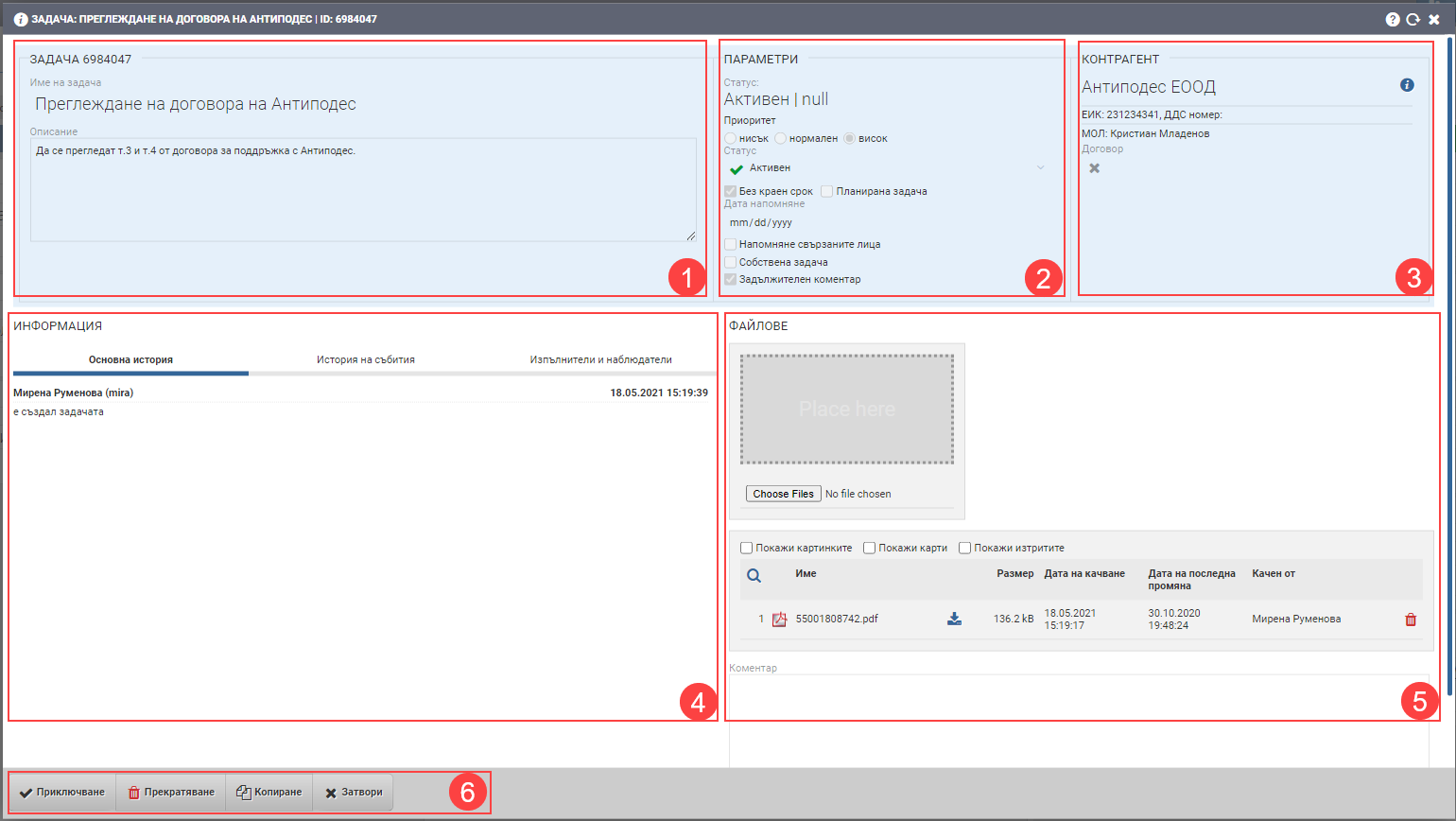
Basic information (1)
Displays the ID, name and description of the task.
Parameters (2)
Displays what parameters were set when the job was created/edited in the following fields/checks:
| Field/Checker | Description |
| Priority | What priority is the task- low/normal/high. |
| Status | Indicates what shared status the job is currently in. |
| No deadline | Indicates whether the task has a deadline and what the deadline is. |
| Planned task | Shows whether the task is marked as scheduled, as well as the dates selected in Due Date and Reminder Date. |
| Date reminder | Displays the selected reminder date. The system will remind the executor of the task via a Syslog message. |
| Reminder related persons | A complex checker means that the system will remind the below selected performers and observers about the task. The reminder is via a message that appears in Syslog. |
| Own task | A complex checker means that the task is user-owned. |
| Mandatory comment | A complex checker means that the task has a mandatory comment and cannot be completed unless a comment is left by the Implementers and Observers. |
Contractor (3)
The contractor with whom the task is associated and access to their file.
Additional information (4)
The additional information (4) is divided into 3 tabs- Basic History, History of Events and Artists and Observers.
Tab Basic History
This field shows the work history of the task by users, dates and times – when and who created the task, when and who changed its status, added a comment to it, etc.
Tab History of events
The Event History field is more oriented towards users and detailed tracking of which user received the task when, when they first opened it, etc.
Tab Contractors and Observers
This field shows which users are selected as Task Performers and Observers in a table with the following data:
| Column | Description |
| Type | Contractor or Observer |
| Type | Type of user |
| Name | User names |
| Status | Task status – open, received, completed. |
Attachments (5)
Prim.IO allows an unlimited number of files in different formats to be attached to the job. All Implementers and Observers, as well as the task creator, can view and download the attachments. See how to work with the field in detail here.
Buttons (6)
At the bottom of the file, buttons with which you can perform the following actions on the task:
| Button | Description of action |
| Closing | Finish your work on the task. |
| Termination | Terminates the task and no one can perform any action on it. |
| Click to copy | Copies all data from the open job, automatically opens a new job and transfers its data. |
| Close | Closes the task without performing an action and returns you to the previous interface. |
The tasks you have already created, as well as those you are associated with as performers and/or observers, can be found in CRM > Tasks > Tasks or CRM >Tasks > Dashboard.