Tasks
A task page where you can do the following:
- you can see the tasks according to the set filters;
- view the task files by clicking on their name in each view;
- perform actions on tasks;
- Manage task statuses.
The interface is divided into several parts: the Header (1), the Filter (2) and the List (3).
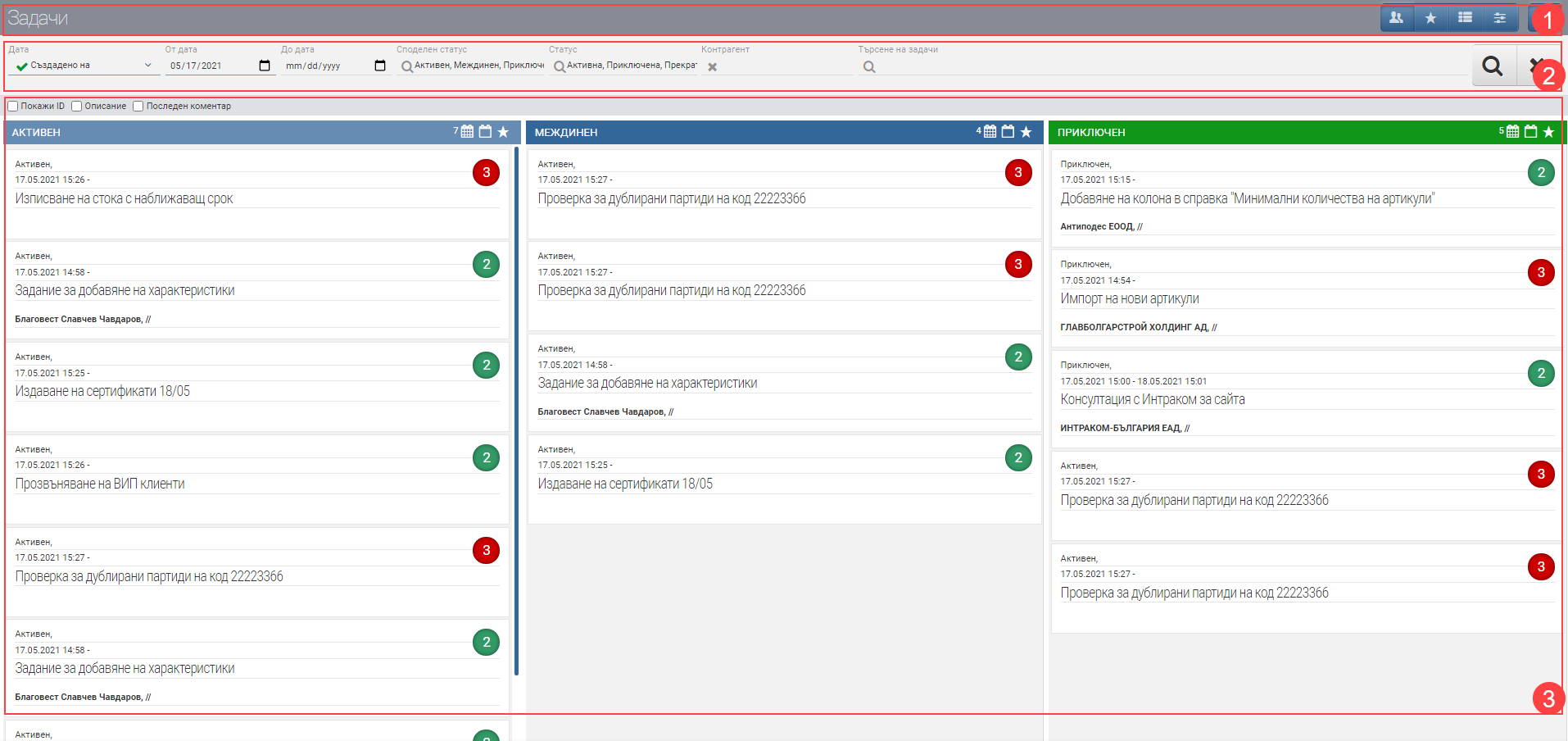
Header (1)
In the Header (1) you see four buttons that allow you to respectively: view tasks by shared status, view tasks by own status, view tasks in a table and change your own task status. Separately, the last button hides/shows the Filters (2).
Filter (2)
In the Filter (2) you can search for tasks by specific characteristics. The search is started with the Magnifying Glass, and the Hicks clears all filters. In the table below you will see all the filters and their explanations:
| Filter | Description |
| Date | Choose by which date you want to filter the tasks: – Deadline (deadline entered in the task) – Created on (date of task entry) – Start of execution (date the task started) – Completion date (date on which the task was completed) |
| From date – to date | Filter by specific dates or time period to display the tasks. Works on selected date type. |
| Shared status | Filter by shared task status. |
| Status | Filter based on task status- active/completed/terminated. |
| Contractor | Filter based on the associated counterparty to the job. |
| Search tasks | Free task search field – can be searched by name/part of name, word from task description etc. |
List (3)
You can see the tasks found according to the criteria set by the Filter in the List (3). Its visualization varies according to the view selected from the buttons in the Header (1).
Regardless of which view you select, you are shown detailed information about the tasks, their files by clicking on their name and the ability to change their status. Each task also specifies the priority with which it is run:
- a figure 1 in grey means that the task is low priority;
- a number 2 in green means that the task has normal priority;
- a number 3 in red means that the task is high priority.
In all views, you can include/exclude additional task information using the following checkboxes above the List (3):
| Checker | Description |
| Show ID | Displays the task ID. |
| Description | Displays the entered Task Description. |
| Last comment | Displays the last comment entered for the tasks. |
List (3) in “Shared Status” view
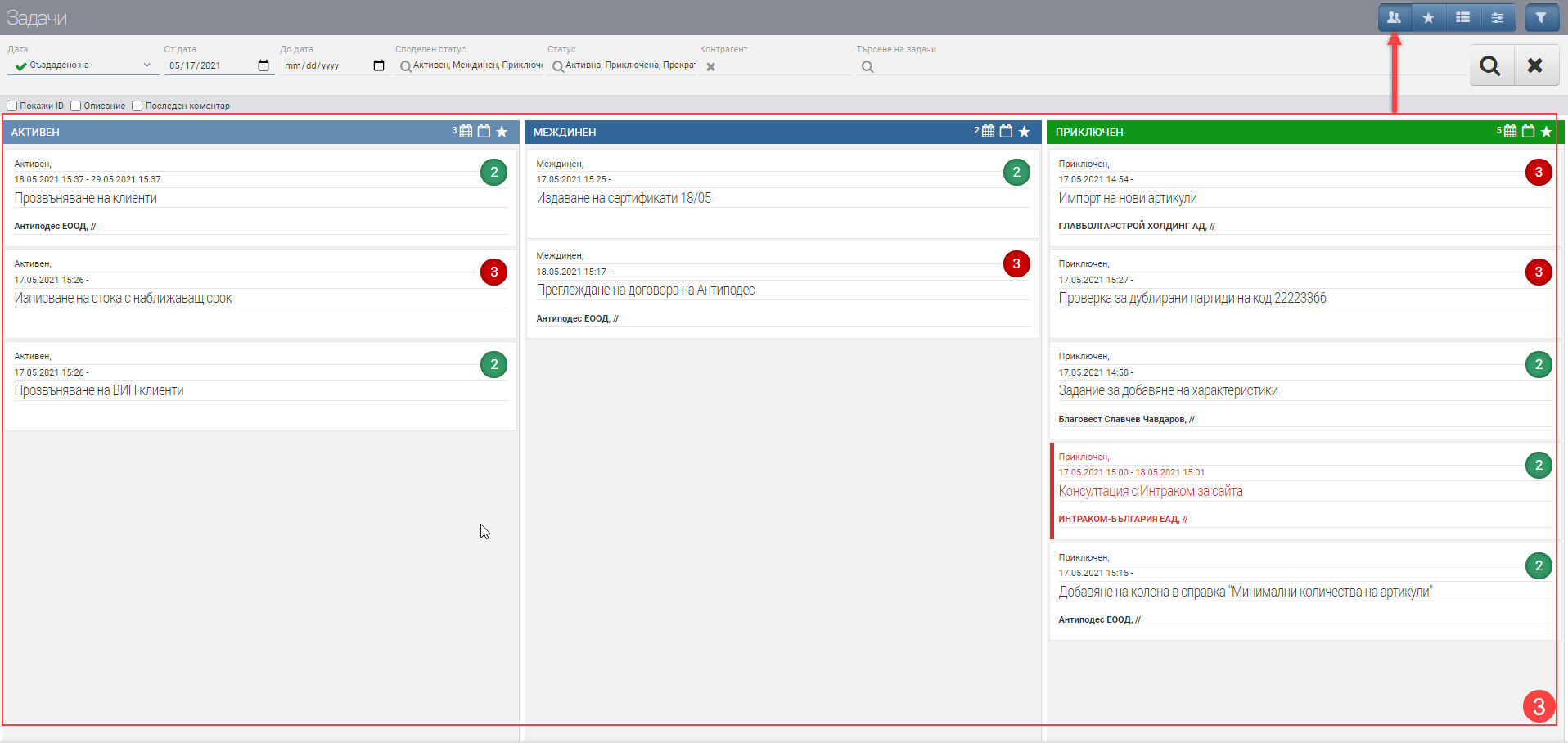
Shared status is managed by Status Tasks. The settings made determine what columns all users in the system will see.
Moving tasks between columns happens by pulling the specific task. First find the task whose status you want to change. Press and hold the mouse button or other pointing device on it to “grab” it. By dragging, move it to the desired column (status) and “drop” it by releasing the button.
List (3) in “Own Status” view
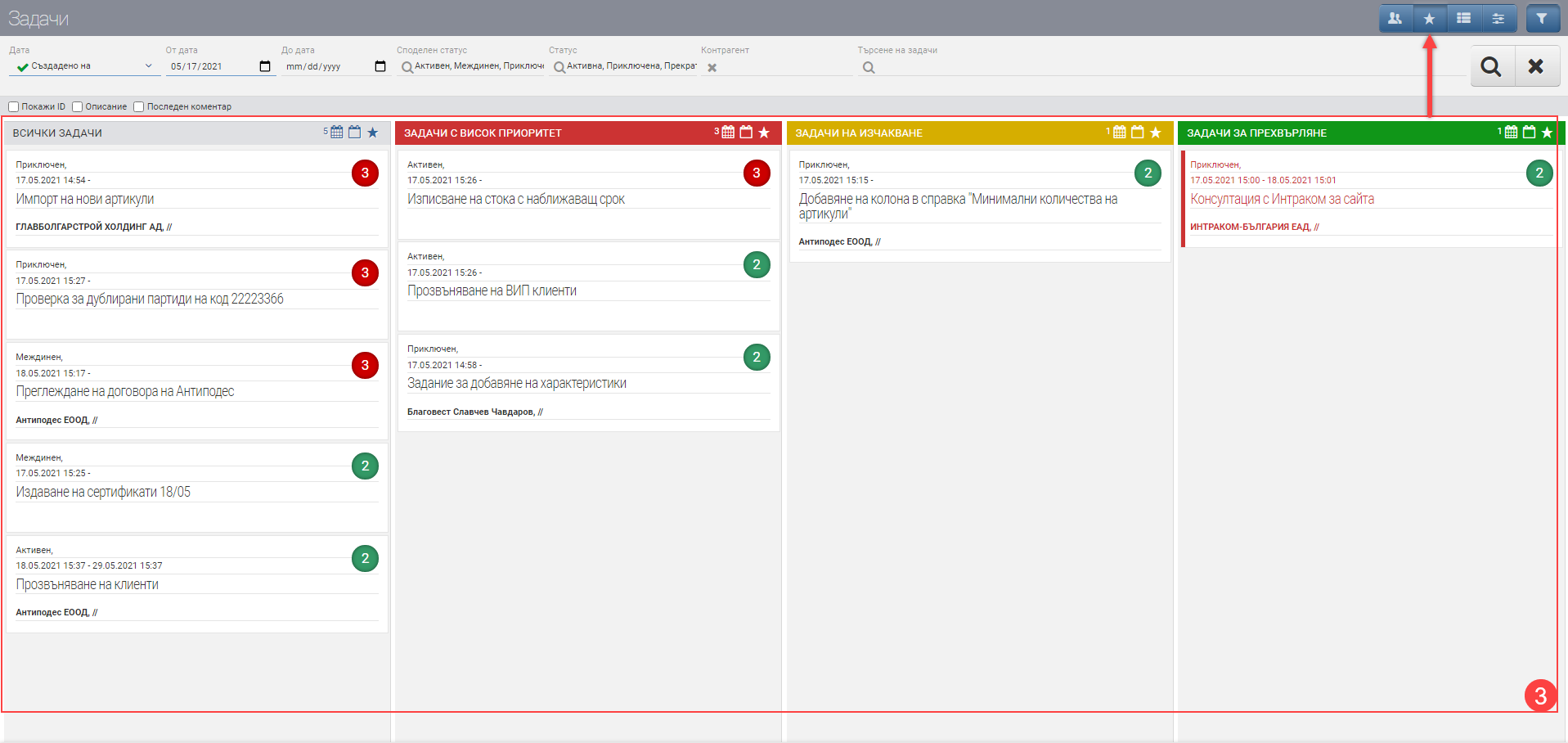
The Custom Status view can be customized to your wants and needs so you can manage your tasks even easier. The own status is managed by the … button in the Header (1).
The settings made determine what columns only the specific user in the system will see. They are not reflected in other users like Shared Status, but only apply to the logged in user.
Moving tasks between columns happens by pulling the specific task. First find the task whose status you want to change. Press and hold the mouse button or other pointing device on it to “grab” it. By dragging, move it to the desired column (status) and “drop” it by releasing the button.
List (3) in “Table” view
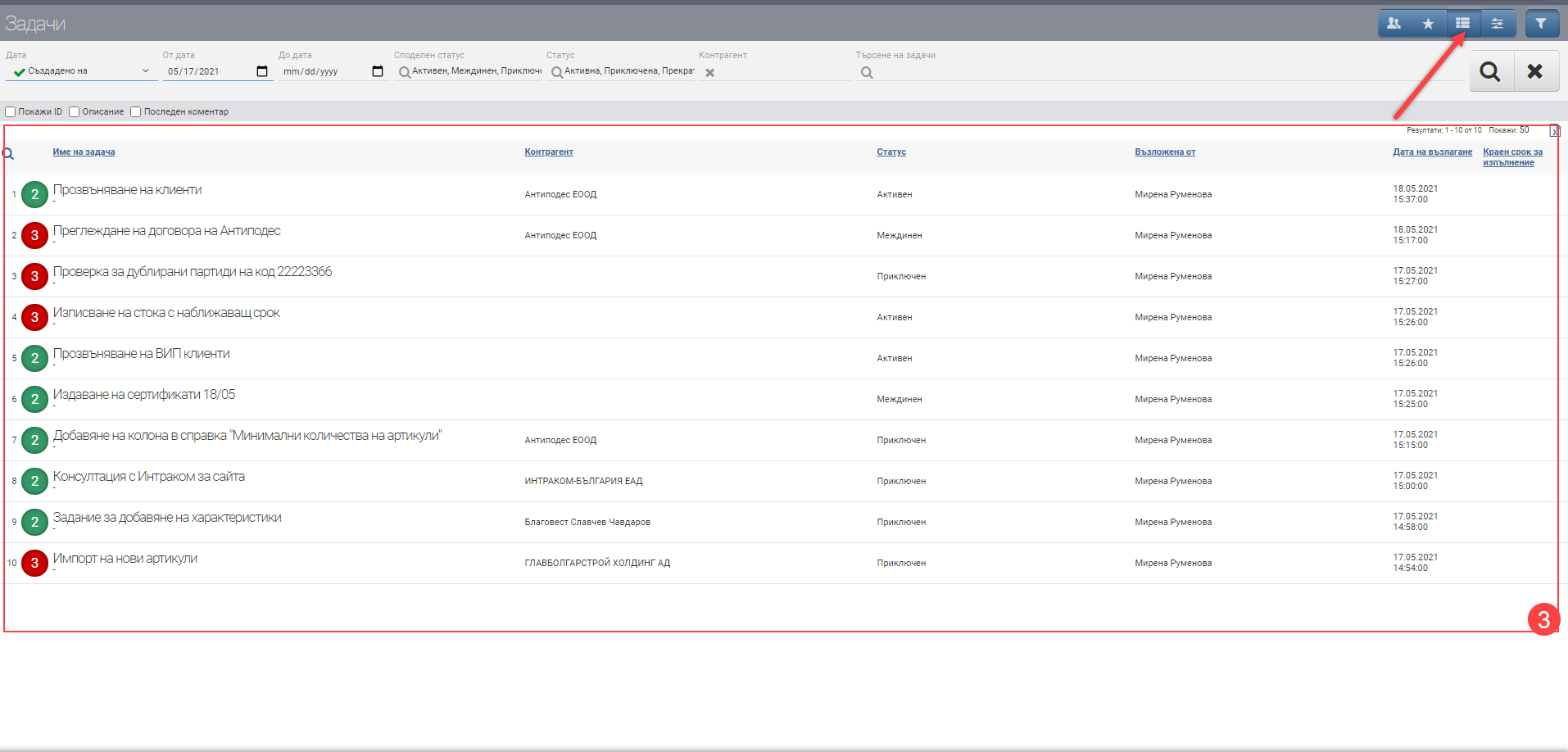
The task information in List (3) as a “Table” is arranged in the following columns:
| Column | Description |
| Priority of the task | Indicates with what priority the task is entered: – a figure 1 in grey means that the task is low priority; – a number 2 in green means that the task has normal priority; – a number 3 in red means that the task is high priority. |
| Name of task | Task name and task file. When you click on your name a task file opens. |
| Contractor | The contractor associated with the task. |
| Status | Shared task status. |
| Commissioned by | The user who created the task. |
| Date of award | Date of assignment. |
| Deadline for implementation | Deadline. |