Docs › Modules › Warehouse and Logistics › Warehouse operations
Storage
Interface for controlling stacking. Here you get information about the deposits made and can filter the result by different criteria. The screen is divided into three main parts: Header (1), Filter (2) and Score (3).
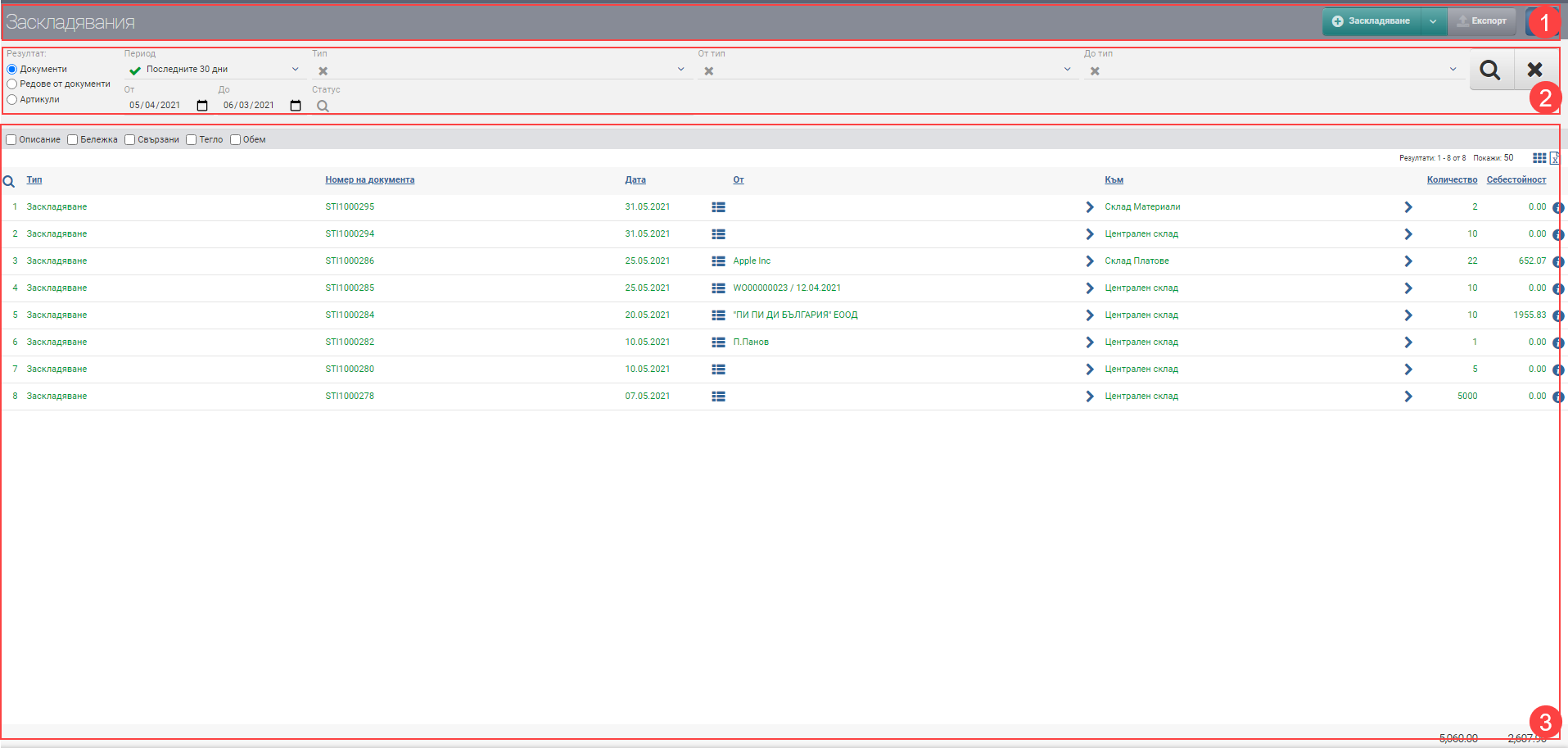
Header (1)
In the Header (1), you see a button with a drop-down menu that allows you to create a Stash, Stash Override, and Adjustment.
You also see a blue magnifying glass button that hides and shows the Filter (2). There is a third button in the Header- Export warehouse transactions, which is only active if you have specified in Filter (2) that your result will be by Document Lines.
Filter (2)
In order to process warehouse operations faster, monitor their status and development, the system provides you with different ways to filter the information. The search in Filter (2) is started with the Magnifying Glass, and the Hix clears all filters. In the table below you will see all the filters and their explanations:
| Filter | Description | Further description of the options |
| Result | – Documents view (3.1) – Document Lines view (3.2) – View Items (3.3) | – If you selected Documents, the result is a list of the stashes; – If you selected Document Lines, the result is a list of specific items for each row of the stacks. If three items are delivered within the same row of a stacking, you will see three different rows listed for the same row of the stacking. – If you selected Items, the result is a list of the items that have been saved. The list also shows the aggregated quantities of the items supplied. |
| Period | Choose from a drop-down menu for which period you want to see the warehouse operations. Works by date of warehouse operation. | The possible options are: – Today – Yesterday – The last 7 days – Last 30 days – The last 365 days – Current month – Previous month – Current quarter – Previous quarter – Current year – Previous year – To date- shows all transactions to date, from the first one entered into the system, regardless of date. |
| From date – By Date | You select specific dates as the period for which to display your transactions. Works by date of warehouse operation. | |
| Type | Filter by operation type. | The possible options are: – Correction – Storage |
| Status | Filter by operation status. | The possible options are: – Regular – Cancelled |
| Of type | Filter by “by type” of document object. | You filter by where the vitrification is coming from. The possible options are: – Without – Supplier – Treaty – Work order |
| To type | Filter by the “by type” of the document object. | Filter by the warehouse object where the storage was made. |
Result (3)
The documents/rows/articles found according to the criteria set by the Filter can be viewed in Result (3). The table changes the information according to the Result type, so they will be described separately.
In addition to the columns containing basic information about the operations, you can include and exclude additional columns of detailed data by means of check boxes. All main and additional columns are described according to Result type.
Result by Documents (3.1)
In the table you will see a list with the foldouts, which contains the following columns and action buttons:
| Column | Description |
| Type | Displays the document type- stacking, correction, reversal of stacking. |
| Document number | Displays document number. |
| Date | Displays the date of the document. |
| Displays information about the document lines with: – Code – Name – Quantity | |
| From | Shows where the hardening is coming from. |
| Filter by selected object From document. | |
| Go to | Displays the selected object Next to the document- warehouse. |
| Filter by selected object To (stock). | |
| Quantity | Quantity of items in the document. |
| Cost | Cost of the items in the document ( if you have rights to see cost). |
| Opens a document file. |
You can include the following columns with additional information:
| Column | Description |
| Description | Displays the description of the document, if any. |
| Note | Displays a note to the document, if available. |
| Related | Displays the related operations to the document. |
| Weight | Weight of items. |
| Volume | Volume of items. |
Result by Lines of documents (3.2)
A list of document rows will appear in your table. If a document has 3 rows with 3 different items, here they will be on three different rows. In the Header (1), you will also see an Export Stock button.
The row-by-row table contains the following columns and action buttons:
| Column | Description |
| Type | Displays the document type- stacking, correction, reversal of stacking. |
| Number | Displays document number. |
| Date | Displays the date of the document. |
| From | Displays the selected object From document- without, counterparty, contract |
| Filter by selected object From document. | |
| Go to | Indicates in which warehouse the storage was made. |
| Filter by selected object To (stock). | |
| Code | Displays item code. |
| Name | Displays item name. |
| Opens an item file. | |
| Measure | A measure of the quantity stored. |
| Quantity | Hidden quantity. |
| Delivery price | List Price Delivery Price. |
| Cost | Self-value of the stockpiled quantity if you have rights for cost. |
| Opens a document file. |
You can include the following columns with additional information:
| Column | Description |
| Description | Displays a description of the item. |
| Brand | Displays the brand of the item. |
| Category | Displays the category of the item. |
| Batch | Displays the lot of the item, if any. |
| Description document | Displays the description of the document, if any. |
| Note | Displays a note to the document, if available. |
| Related | Displays the related operations to the document. |
| Weight | Displays the weight of the item. |
| Volume | Displays the volume of the item. |
Result by Items (3.3)
In the table you will see results by item. If you have 5 documents containing the same item, they will be merged here into 1 line. The list shows the summarised quantities of the stocked items.
| Column | Description |
| Code | Article code |
| Name | Item name |
| Opens item file | |
| Measure | Measure of the item |
| Quantity | Quantity of the item/service from the deposits in the given period and according to the set filters. |
| Cost | Cost of the item, if you are eligible for cost. |