Docs › Modules › Tasks › Tasks
Add a task
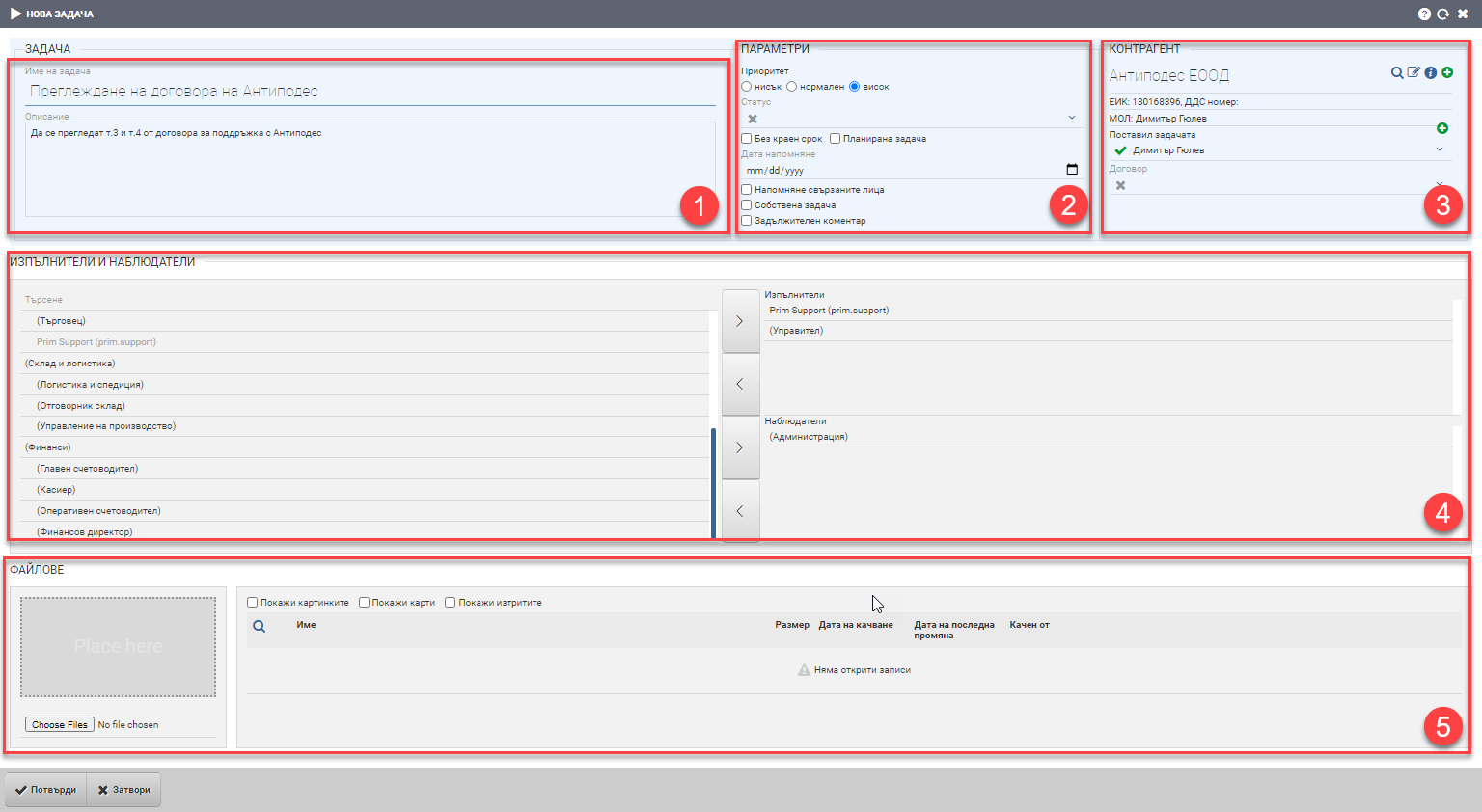
The interface for adding a new task consists of Basic Information (1), Additional Parameters (2), Contractor (3), Contractors and Observers (4), and Attachments (5).
Basic information (1)
In free text, write the name and description of the task. The task name field is required.
Additional parameters (2)
Fill in and manage task information in the following fields/checks:
| Field/Checker | Description |
| Priority | Choose what priority the task should be low/normal/high |
| Status | Select the status of the task from the drop-down menu. The statuses are preset nomenclature. |
| No deadline | Putting a check in this field means that the task has no deadline and the “Deadline” date field will be hidden. |
| Planned task | A scheduled task means that it will take place in the future and will have a start date by which it must be started. Once you check that the task will be scheduled, a date for its start appears below. |
| Date reminder | You choose which date on the calendar the system reminds you of the task. The reminder is via a message that appears in Syslog. |
| Reminder related persons | A complex checker means that the system will remind the below selected performers and observers about the task. The reminder date at the top becomes a required field. The reminder is via a message that appears in Syslog. |
| Own task | A complex checker means that the task is user-owned. The field for selecting Contractors and Observers is hidden. |
| Mandatory comment | A complex checker means that the task has a mandatory comment and cannot be completed unless a comment is left by the Implementers and Observers. |
Contractor (3)
Contractor to which the task is related. Search and select from all contractors in the system, regardless of their type.
Contractors and Observers (4)
The executor is the user who has to perform the action associated with the task. The observer, on the other hand, only follows the actions and comments. Both can be to a specific user or role of users.
In the fields, you indicate which users and/or roles the task is for by highlighting and moving them to the right fields. Selecting a user/role is done by double-clicking or using the arrows between the two lists. In the list on the left, you see all users and roles, and in the list on the right, you see those you have selected for the task as Implementers or Observers.
Attachments (5)
Prim.IO allows an unlimited number of files in different formats to be attached to the job. All Implementers and Overseers, as well as the task creator, can view and download the attachments. See how to work with the field in detail here.
The creation of a task is confirmed with the Confirm button. The tasks you have already created, as well as those you are associated with as performers and/or observers, can be found in CRM > Tasks > Tasks or CRM >Tasks > Dashboard.