Docs › Modules › Sales › Operating activity Sales › Sales › Create a Sale
Add / Edit a row in Sale
Interface for adding a line to a sale after you have selected a specific item or service.
The screen is divided into several parts: Order Details (1), Items in BOM (2), Order Discount (3) and Description (4), Amount (5) and Item/Service Summary(6).
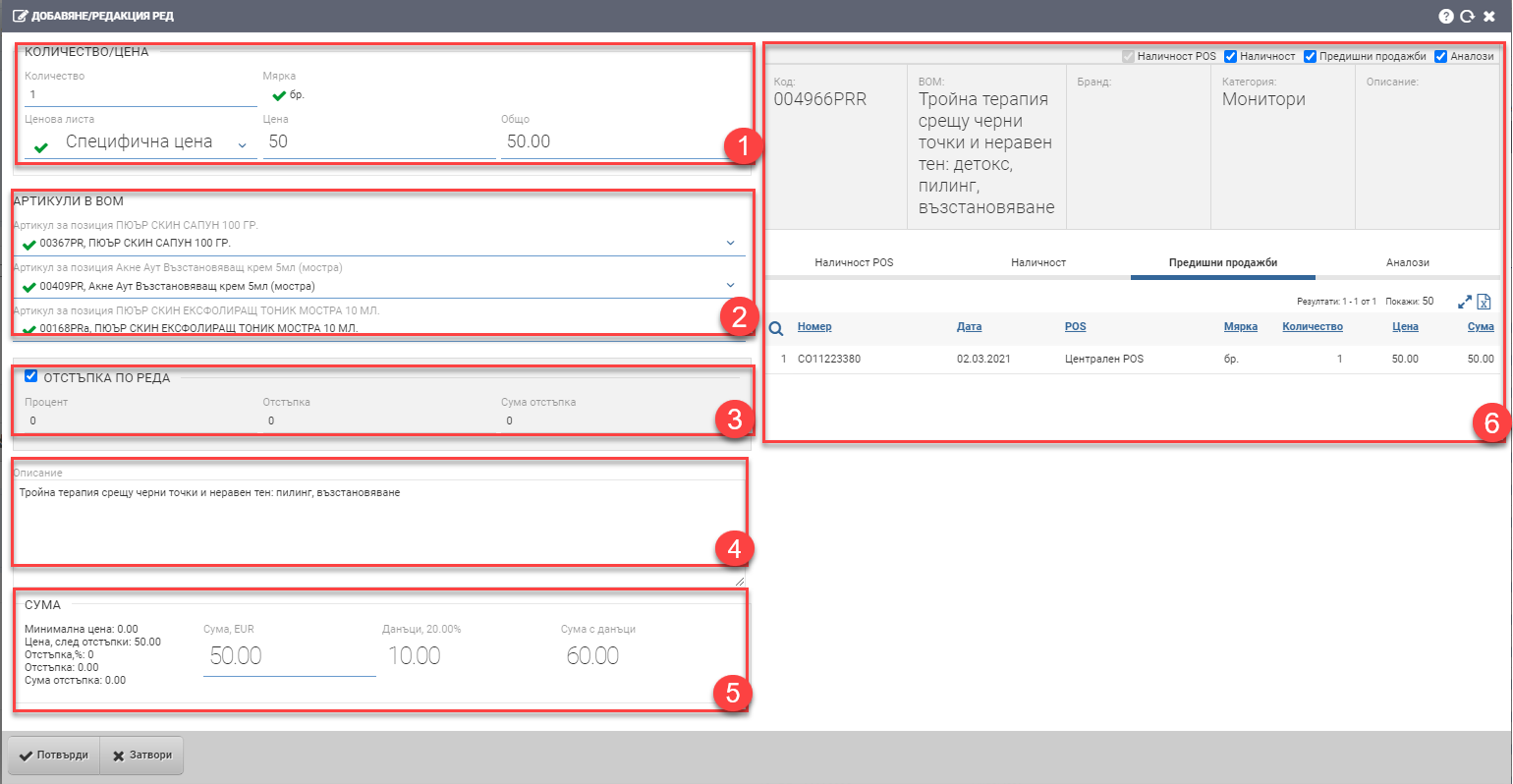
Order details (1)
In section Line details (1) you fill in the following fields, referring to what quantity at what price/at which price list you are selling:
| Field | Description |
| Quantity | What quantity are you adding from the selected item/service measure |
| Measure | In what measure will the item/service be |
| Price list | You are shown all the price lists you are allowed to use. You select the one you want from the list and it automatically loads the prices. If you have configured access to the “Specific Price” price list, you can decide the price yourself- the “Price” field becomes free to write. |
| Price | Price for one quantity of the selected item/service without taxes |
| Total | Total price for the whole quantity without taxes= Price* Quantity |
Items in BOM (2)
This section appears when you select a BOM item to sell. In Items in BOM (2) you are shown the components of the selected BOM. Note that the sale of different items as a set happens at one common BOM price.
Line Discount (3)
You have the option to discount the line by placing a check in Line Discount (3). Note that these discounts are a matter of configuration and you must be given permissions to work with them. If you have permissions, the following fields will appear:
| Field | Description |
| Percentage | Discount percentage. The system will automatically calculate the remaining two fields, depending on the price entered in Order Data (1). The maximum field value is 100. |
| Discount | Discount based on unit price. The system will automatically calculate the remaining two fields, depending on the price entered in Order Data (1). The maximum value of the field is the unit price excluding taxes. |
| Discount amount | Amount discounted base total price (unit price*quantity) excluding taxes. The system will automatically calculate the remaining two fields, depending on the price entered in Order Data (1). The maximum value of the field is the total price excluding taxes. |
Description (4)
The description of the item/service is automatically filled in. In case it is not filled in beforehand, the user can fill it in free text. The field is optional.
Sum (5)
The fields in Sum (5) add the data entered in the above sections and generate a summary of the row totals:
| Field | Description |
| Minimum price | Displays the minimum price of the item, if any. |
| Price, after discounts: | Calculated based on price entered in Order Data (1) and Discounts (3). Shows the price excluding taxes after discount for 1 quantity. |
| Discount,%: | How much is the percentage discount entered in Discounts (3). |
| Discount: | How much is the discount per quantity entered in Discounts (3). |
| Sum discount: | How much is the total discount for the entire quantity entered in Discounts (3). |
| Amount, currency | Total amount excluding taxes (quantity*unit price excluding taxes). If you know this amount, you can write directly into it. |
| Taxes, % tax | Amount of the tax and its value in percentage according to the set tax rate. |
| Amount with taxes | Final sum (unit price with taxes* quantity). The field is free to write in and you can write directly in it if you know the final amount. The system will transfer the data on the other fields. |
Item/Service Summary(6)
In this section you will find summary information about the item/service of the nomenclature you are adding. The field is informative only and you cannot change anything in it. Contains the following information:
| Field | Description |
| Code | Item/service code |
| Name | Name of item/service |
| Brand | Brand of the item/service |
| Category | Category of item/service |
| Description | Description of the item/service |
Additional checkers will appear above the information box under certain conditions:
- Inventory POS- appears provided you have selected direct delivery of the goods. If you put a checker, the table below the informative field will display a table with the following columns:
| Column | Description |
| Warehouse | Shows in which warehouse the selected item is available. Shows only the warehouse tied to the Pos. |
| Substore | Displays which sub-stock the selected item is available in. |
| Site | Displays which warehouses have stock of the selected item. |
| Batch | Displays batches of available items. |
| Shelf life | Shows the expiry date of the items available. |
| Measure | Measure of the selected available item. |
| Quantity | Available quantity of the selected item. |
| Blocked | How many pieces of the selected item are blocked in the warehouse to the POS. |
- The Inventory Checker loads a table below the information box that shows you a list of the warehouses and their inventory of the selected item. Note that the warehouses that you are at least given permissions to view are displayed, not all warehouses in the system.
| Column | Description |
| Warehouse | Name of warehouse |
| Measure | Measure of the item |
| Availability | How much stock is available in the warehouse of the selected item in the measure |
| Blocked | How many of the items are blocked in the warehouse |
| Free | How much of the item is free ( stock-blocked) |
| Incoming | How many of the items are ordered to come into the warehouse with supplies. |
| Outgoing | How many of the items are ordered to come out of the warehouse with dispatches. |
| Balance | Balance = Quantity + Incoming – Outgoing – Blocked. |
- Your Previous Sales checker only appears if you have previously sold the same item/service to the customer you selected. You are shown a table with the following columns:
| Column | Description |
| Number | Number of sale |
| Date | Date of sale |
| POS | the POS from which the sale was made |
| Measure | Measure of the item/service |
| Quantity | Quantity sold of the item/service |
| Price | At what unit price excluding taxes the item/service was sold in the specific sale. |
| Sum | What is the amount of items sold at the same price. Quantity*price = sum |
Only a “Miscellaneous” or so-called “Retail” customer will not load any previous sales to you. If you would like to make a similar reference, please go to Sales Reference.
- The Analogues checker is displayed if the selected item/service has an analogue entered. You have the option to replace the originally selected item/service with its analogue from the green + button at the top of the table. The table contains the following columns:
| Column | Description |
| Code | Code of the similar item/service |
| Name | Name of the similar item/service |
| Measure | Measure of similar item/service |
| Availability | Availability of the analogous item (sum of the stocks in all warehouses you have rights to see) |
| Blocked | How much of the available similar item is blocked |
| Free | How much of the available similar item is free (quantity- blocked) |