Docs › Modules › Sales › Operating activity Sales › Sales › Create a Sale
Import rows from Excel
The interface consists of Type (1) and Manage Files (2) fields :
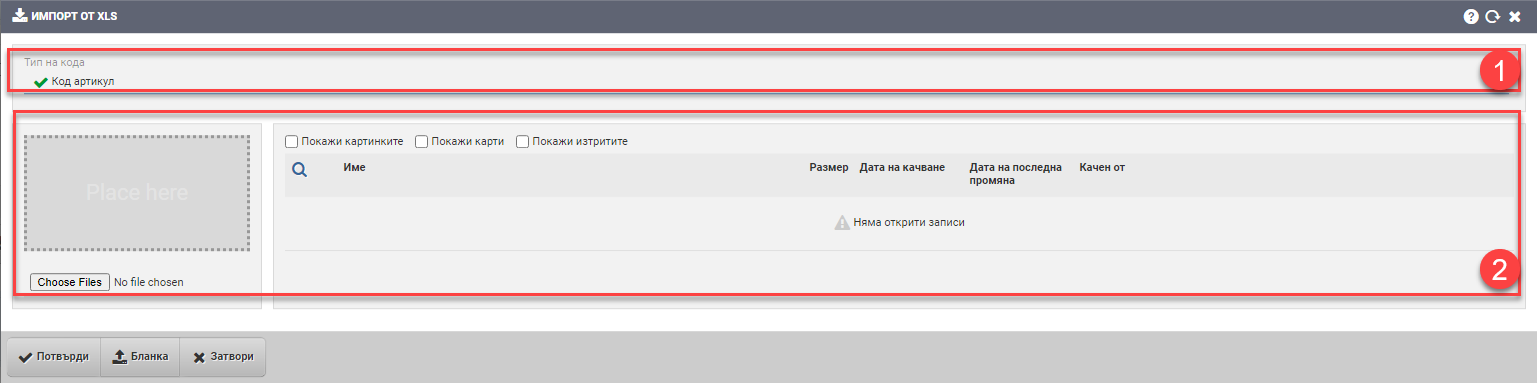
Type (1)
In the Type (1) section, you need to specify which code – the item’s or the supplier’s – will be the leading code in uploading items and which code you will use when filling in the Excel import file.
File Management (2)
In the Manage Files section (2), import files are uploaded and deleted.
In short, uploading files is done in two ways:
- Uploading files via drag and drop
Find the file you want to upload to your computer or other device you are using. Press and hold the mouse button or other pointing device on it to “grab” it. By dragging, move it to the grey box and “release” it by releasing the button. Pasting the file directly uploads it to the system and it is listed in the right field.
- Upload files via Choose Files button
Click the Choose Files button. It will open the directory on your computer or other device you are using. Find the desired file, select it and confirm the upload. The confirmation directly uploads the file to the system and it is listed in the right field.
Detailed instructions on how to work with attachments can be found here.
Use the buttons at the bottom of the interface to Confirm or Decline the import, and the Download Form button to download the form to an Excel file that you can process and upload in any of the ways described above.
Import form in Sale
The file contains the following columns:
| Column | Description | Type |
| Code | Item Code or Supplier Code – as selected in Type Section (1) | Mandatory to complete |
| Measure | Measure | Mandatory to complete |
| Quantity | Quantity | Mandatory to complete |
| Price | Price | Mandatory to complete |
| Batch | Batch | Optional if the item is batchless |
Your import file may contain different columns such as expiration date, material, color, etc. because of specific characteristics of the items on your system.
Import form in Moving
The file contains the following columns:
| Column | Description | Type |
| Code | Article code | Mandatory to complete |
| Warehouse | Understock of the warehouse from which you are moving the items | Substore code/name of the substore from which the items come out |
| Quantity | Quantity to move | Mandatory to complete |
| Batch | Batch | Optional if the item is batchless |
Your import file may contain different columns such as expiration date, material, color, etc. because of specific characteristics of the items on your system.
Import form for unit quantities in Moving/Revision
The form contains only one column- Item Code/Barcode. It is filled in by a barcode reader by marking multiple barcodes/item codes. When you import the file, the system will automatically group them in the move.