Docs › Modules › Sales › Operating activity Sales › Sales
Invoicing of Sale
The interface is used to create a financial document to one or more sales. The sale from which you started the invoicing process will automatically appear on the screen as selected. In addition, all unbilled sales to the same customer will also appear and can be selected and included in the financial document.
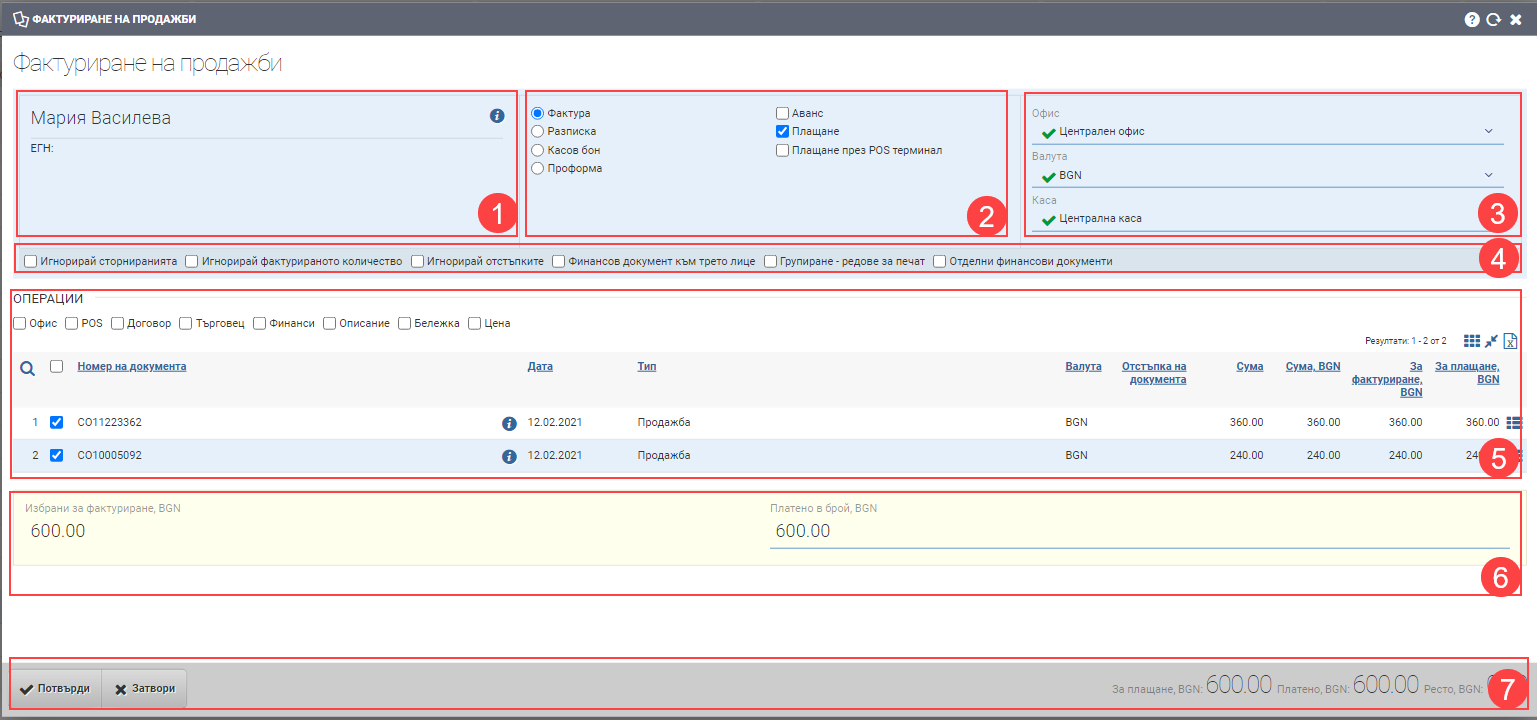
The screen is divided into the following parts – Customer (1), Financial Information (2), Additional Information (3), Checks (4), Transactions (5), Amount (6) and Futures (7):
Customer (1)
In the Customer section you can see the customer information. The additional information button  opens a counterparty file.
Financial information (2)
In the Financial Information section (2) you have the option to select the type of document you are creating- Invoice, Receipt, Cash Voucher or Proforma. Depending on what type of financial document you select, you will see different sales in the Transactions section (5). The result depends on the billing type selected when the sale is created.
When creating the financial document, you can also issue a payment document by ticking the Payment checkbox and specify which account it will be reflected in.
The Advance checkbox is used to issue an advance financial document, and you have the option to calculate its value as a percentage or amount.
Additional information (3)
In the Additional Information section you must select the Office from which the financial document will be issued, the currency and the cashier if you will also be entering a payment document.
Checkers (4)
Checkers manage the following additional options:
| Option | Description |
| Ignore stoppages | It is used in cases when you want to create a financial document for the full amount of the sale, ignoring the reversals made on it. |
| Ignore discounts | Used in cases where you want to create a financial document for the full amount, ignoring discounts. |
| Financial document to a third party | It is used when you want to create a financial document of a counterparty other than the one in the sale. |
| Grouping – print lines | It is used when you have sales for multiple lines and you want them to be grouped by item/service and unit price in the Print view. |
| Separate financial documents | It is used when you want the marked sales to be invoiced in separate financial documents. An additional Generate PDF check box appears. |
Operations (5)
Based on your selections in the previous sections, the Transactions section will show you different lines that you can select for billing. The table contains the following columns:
| Column | Description |
| Checkbox for marking | Mark the desired sale for invoicing. |
| Document number | Sale Number. |
| Opens a file on the sale. | |
| Date | Indicates date of sale. |
| Type | Displays the document type. |
| Currency | Shows the currency of the sale. |
| Discount of the document | Shows the discount given on the document, if any. |
| Sum | Shows the amount of the sale. |
| Amount, BGN | Displays the amount of the sale in BGN. |
| For invoicing, BGN | Shows how much of the amount is left to invoice. |
| For payment, BGN | Shows how much of the amount is left to pay. |
| Button for rows | Opens an interface for selecting billing lines. It is used when you want to invoice only some lines of the selected sale. |
You can include the following additional columns for more information to the table:
| Option | Description |
| Office | The office from which the sale was made. If a user does not have the right to work with an office, they will not see it in the result. |
| POS | Displays the specific POS from which the sale was made. |
| Contract | Displays the name and contract number under which the sale was made. |
| Merchant | Shows the merchant of the sale. |
| Finance | Displays columns with data about tax transaction, billing method, payment method set in creating the sale. |
| Description | Displays the description of the document, if any. |
| Description for internal use | Displays a note with the document, if available. Note: When you select Description or Note, an additional button appears in the list – . This button allows quick editing of both fields. |
| Price | Displays the full price for the order and breaks down the actual price of the items and taxes into several columns in the list (Price, Tax, Amount) |
Sum (6)
In the Amount field (6), the selected billing documents are calculated for you. If you have selected to pay the finance document, a Payment Amount field will also appear where you can specify how much will be paid.
Footer (7)
In the Footer (7) are the buttons for confirming or rejecting the operation, as well as the fields for its amounts.