Docs › Modules › Warehouse and Logistics › Warehouse operations › Delivery
Create Shipping
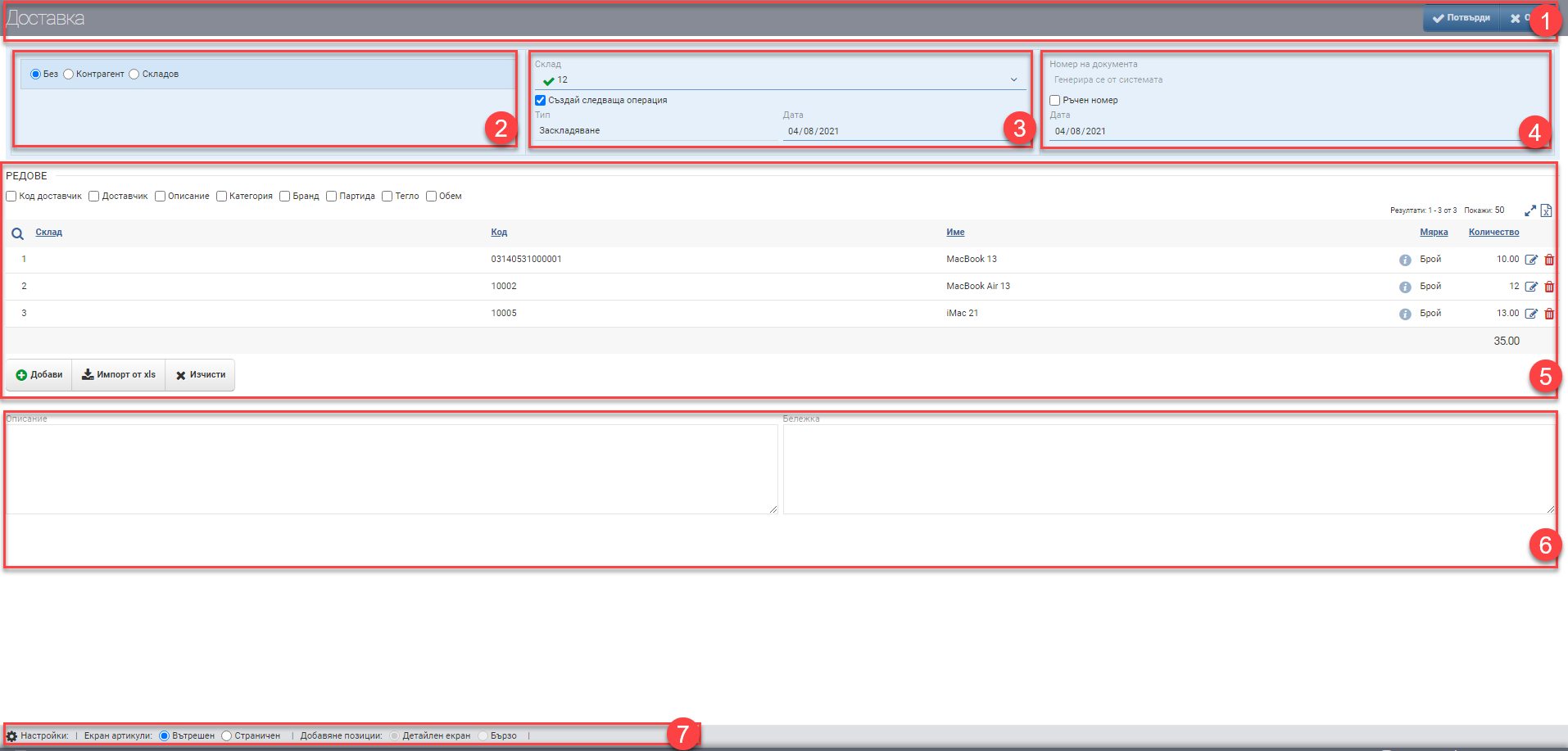
The interface consists of Header (1), Delivery from (2), Delivery to (3), Document Data (4), Lines (5), Description and Note (6) and Configuration of how to add lines (7):
Header (1)
In the Header (1) you see the name of the document you are creating and two buttons for Confirm and Cancel delivery.
Delivery from (2)
In the Delivery from field (2) you specify where the delivery comes from and you can select the following options:
- No
- Contractor/Contract
- Warehouse
Delivery to (3)
In the Delivery to (3 ) field, you specify which warehouse you want the items to be ordered into. If you are the MOL of the selected warehouse, you are presented with a “Create next operation” option. If you put a check on “Create Next Transaction”, as the delivery is confirmed, the system will generate a Warehouse Entry which will enter the goods into the warehouse and complete the Delivery.
Note that Delivery is an intermediate, logistical operation and is usually a subsequent operation to another- e.g. Order, Move, etc., so the From (2) and To (3) fields are usually loaded automatically.
Document details (4)
The Document Details field (4) includes the following parameters:
| Field/Checkbox | Description |
Lines (5)
In the Lines section (5) you can manually enter items for delivery, add items from previous transactions or add them via an XLS file.
Manually adding items is done by clicking the button with the corresponding name. You are presented with an interface with all items in the nomenclature. The interface consists of Filter (1) and Result (2):
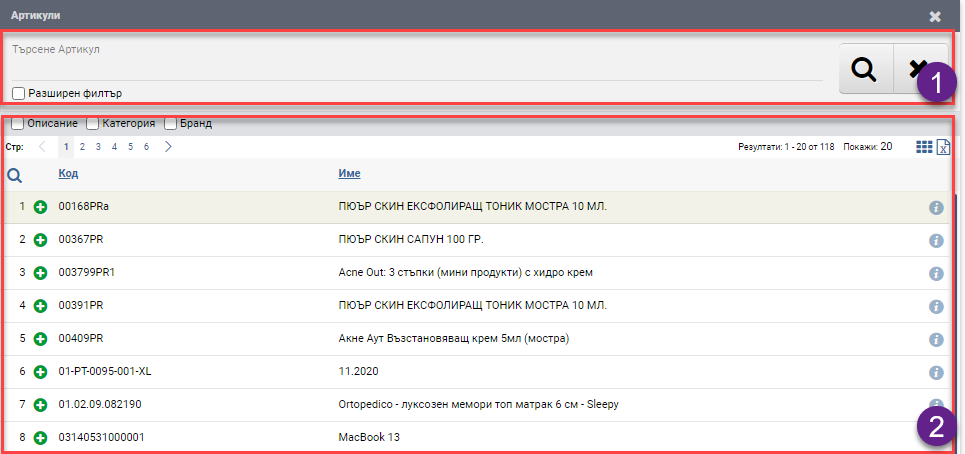
In the free Search box you can search by word, code, brand, etc. to find the item you want. You also have the option to turn on an Advanced Filter with Categories, Brand, Features and Supplier, which can help you find things faster. In addition, you can further filter by available items only. The search is launched with the Magnifying Glass on the left, and the Hicks clears all filters.
The items/services found according to the criteria set by the Filter are ranked in the Result (2). The table consists of the following columns:
| Column | Description |
| Opens the interface to add an item in detail | |
| Code | Article code |
| Name | Item name |
| Opens item file | |
| Free | Shows how many pieces are left free in the warehouse |
The items added from the detail add interface are arranged in Row (5) in a table with the following columns:
| Column | Description |
| Warehouse | Warehouse/sub-warehouse for storage |
| Code | Article code |
| Name | Item name |
| Item file | |
| Measure | Measure of the item |
| Quantity | Storage quantity |
| Opens the line for editing | |
| Deletes row |
In addition to the columns containing basic information, you can include and exclude additional columns of detailed data by means of check boxes :
| Column | Description |
| Supplier code | Supplier code |
| Supplier | Name of supplier |
| Description | Item description |
| Category | Category of item |
| Brand | Brand of the item |
| Batch | Batch of item |
| Weight | Displays the weight of the item as set in its file. |
| Volume | Displays the volume of the item as set in its file. |
Description and Note (6)
Configuration of how to add rows (7)
Views of the Products and Elements screen
The two variants, Inner view and Side view, are switched by ticking the desired view in the Configuration. They are used in the same way.
To save the changes, you must press the Confirm button in the Header. If you want to exit without saving the changes, you must press the Close button.