Docs › Modules › Warehouse and Logistics › Module description, documents and operations › Create a document
Adding/editing a line from a warehouse/logistics document
Interface for adding a line to a warehouse/logistics document after you have selected a specific item. The screen is divided into several parts: Item Summary (1), Order Details (2), Previous Operations (3), Stock Information (4), Total Quantity (5), Description (6) and Stock (7).
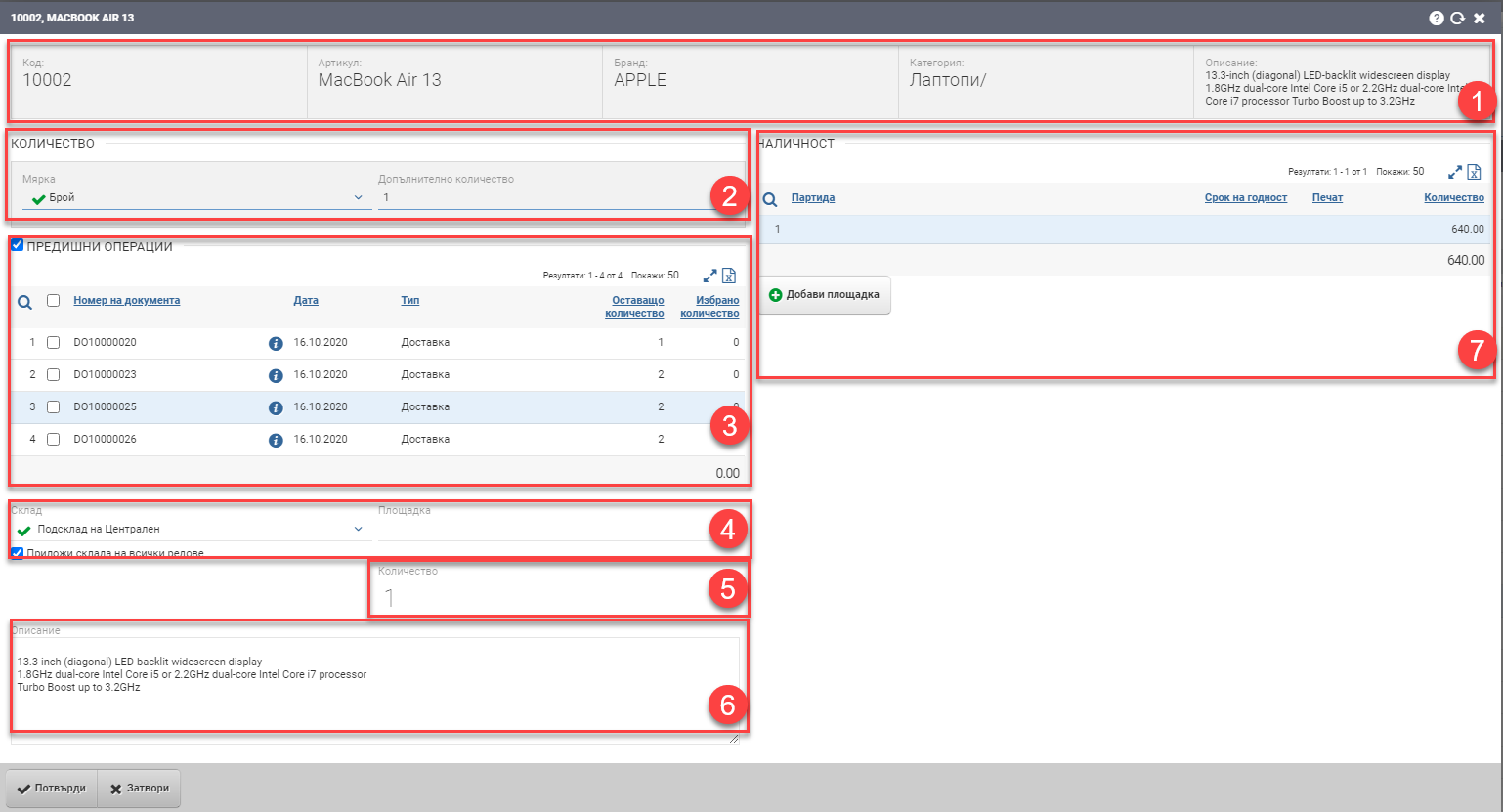
Item Information Summary (1)
Order details (2)
In the Row Data section (2), you fill in the following fields regarding what quantity in which unit of measure you will add:
| Field | Description |
| Measure | In what measure the item will be. Choose from the units associated with the item. |
| Quantity/ Additional quantity | What quantity will you add from the selected measure of the item. The field is automatically renamed to “Additional Quantity” when the Previous Operations check box is enabled. |
Previous operations (3)
By turning on the Previous Operations checker (3) you will see incomplete Deliveries/Shipments of the same item made under the same conditions – Contractor/Contract, Order/Shipment and Warehouse. The system offers you the possibility to merge the previous unfinished ( pending) operations of the item into one. This is done by highlighting the documents you want to be included and specifying a desired quantity of them.
The table in Previous Operations shows you the following data:
| Column | Description |
| Document number | Document number |
| Info button | Document file |
| Date | Date of document |
| Type | Document type |
| Remaining quantity | What quantity has not been processed so far. |
| Selected quantity | In this column, double-click to open the edit box and you must specify what quantity you want to be involved in the document you are creating. |
Marking the desired operations to be performed automatically includes their quantities to the Total Quantity (5). Additionally, the Quantity field in the Row Data (2) is changed to Additional Quantity, and the system will add the quantity from the highlighted rows with previous transactions and this additional quantity to calculate the Total Quantity (5).
Warehouse information (4)
In the Warehouse Information section (4) you have the option to select a sub-warehouse of the selected warehouse as well as a storage site. If you put a check on “Apply warehouse to all rows”, this will carry the selected warehouse/subwarehouse/platform to all rows in the document.
Total quantity (5)
The Total Quantity field (5) only when Previous Operations (3) are included. It is the sum of Additional quantity in Order data(1) and Selected quantity from Previous operations (3).
Description (6)
Stock (7)
Stock section (7) shows the stock of the selected item in the warehouse, in a table with the following columns:
| Column | Description |
| Batch | Displays batches of items available in the warehouse. |
| Columns according to characteristics | Displays more columns according to the items characteristics. |
| Quantity | Available quantity of the selected item in the warehouse. |
To save the changes, you must press the Confirm button in the Header. If you want to exit without saving the changes, you must press the Close button.