Docs › Modules › Warehouse and Logistics › Warehouse operations › Revisions
Create a Reassessment
Revision and Revaluation are the last operations that are executed for the day by the system!
Revision and Revaluation lock the warehouse in which they are performed! As long as the transaction is not confirmed or denied, no one in the system will be able to pick or stock in the revised warehouse. The operation of the warehouse can be resumed only after the confirmation or rejection of the revision.
Revaluation only adjusts total and/or unit cost! Quantities are changed through Revision/Inventory. Revaluation always works at the Warehouse level, and for this operation it does not matter if the warehouse has sub-warehouses/sectors.
Our recommendation is to do the Revision/Revaluation in stages that include few items ( can be by groups, brands, etc). If your warehouse is divided into sub-warehouses/sections it is better to do them separately.
Usually after each Inventory a Revaluation is done to add/adjust the cost.
The interface for creating a Reassessment consists of a Header (1), a Filter (2), a Result (3), and a Configuration for how to add rows (4):
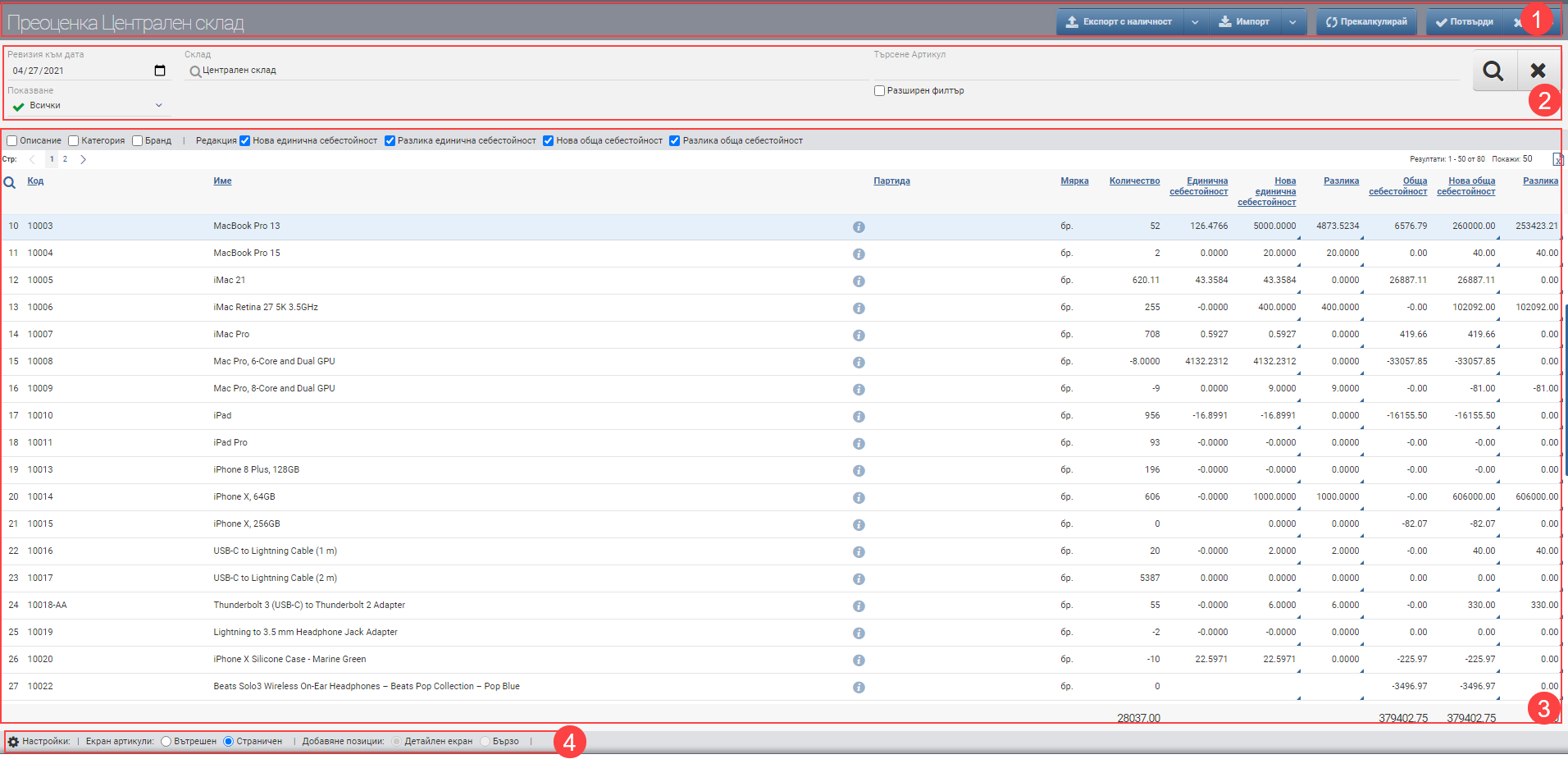
Header (1)
In the Header (1) you see the name of the document you are creating and a few buttons whose actions are explained below:
| Button | Possible options | Description |
| Export with availability | ||
| Export with availability | Generates an xls file containing only the items in stock. | |
| Export all | Generates an xls file containing all items that were in the warehouse on the selected date, including those with a zero or negative value. | |
| Export filtered | Generates an xls file containing all the items that are in the Result, with the system taking the specified filters into account. | |
| Import | ||
| Import | Opens an interface for importing rows from Excel. | |
| Recalculate | Calculates the values in the Summary (the total at the end of the table) of the New Total Cost and Difference columns. | |
| Confirm | Save your changes and confirm the Reassessment. | |
| Refuse | You reject the changes and do not save the Revaluation. |
Filter (2)
| Filter | Possible options | Description |
| Availability to date | You specify the date on which you will make the Revaluation. | |
| Warehouse | Displays the name of the warehouse where you are making the Revaluation. | |
| Search item | In the free Search box you can search by word, code, brand, etc. to find the item you want. | |
| Extended article | You also have the option to include an Advanced Filter with Categories, Brand, Features and Supplier, which can help you find items faster. | |
| Retrieved from | Controls which items you will see in Result (3). According to the selected list value, listed below, you can keep track of how far you have got in the Revision, make reports on items, cost changes and other items that have not participated in the operation. | |
| All | Displays all items that have ever been in the warehouse. | |
| With changes | Shows only the items whose unit or total cost has been changed. For example Item A has stock in the warehouse 10 pcs, the cost of 1 pcs is 10 BGN, the total cost is 100 BGN. Whichever of the two (unit cost, total cost) you change, it will display as “With changes”. | |
| No changes | Displays only the items whose unit or total cost has been affected but has remained the same as the original cost. For example Item B has stock in the warehouse 10 pcs, the cost of 1 pcs is 10 BGN, the total cost is 100 BGN. Whichever of the two (unit cost, total cost) you mark, edit, delete, but then enter the same as the starting value, it will render as “No changes”. | |
| Untouched | Shows the items that are not counted/not affected by the Revaluation. Untouched = All – (With changes + Without changes) |
The application of the set filters is started with the Magnifying Glass on the right, and the Hix clears all filters.
Result (3)
Specific to working with the Reassessment interface are the checks above the table, which usually include/exclude additional columns. One of them – they work the same way by adding columns – these are Description, Category and Brand.
The others, separated by the text “To Edit”, include/exclude the ability to write directly in the New Unit Cost, Difference Unit Cost, New Total Cost and Difference Total Cost columns. You can include one, two or all columns, depending on where and what you want to enter:
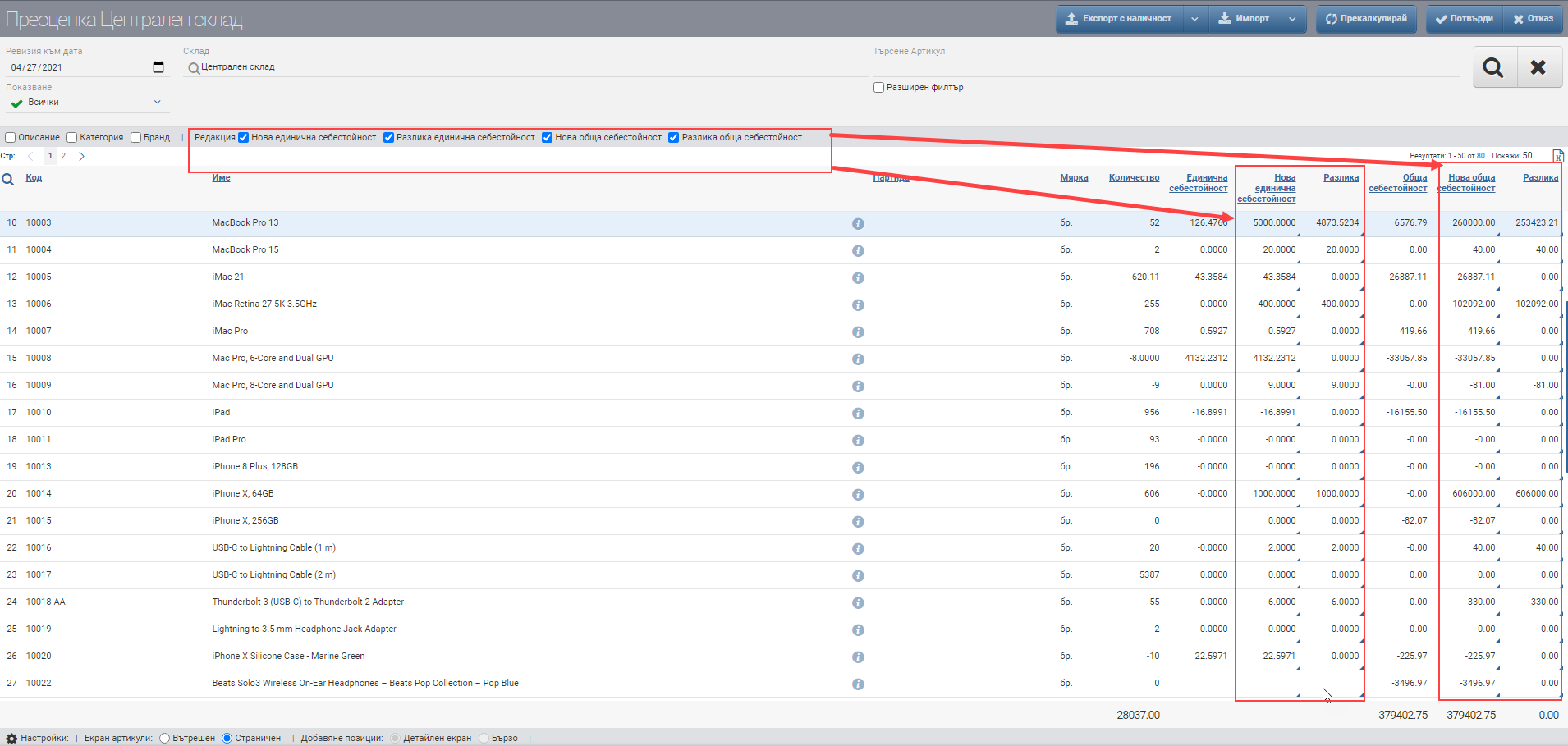
The Result table (3) contains the following data:
| Column | Description |
| Code | Article code |
| Name | Item name |
| Opens item file | |
| Batch | Batch |
| Measure | Measure of the item |
| Quantity | Quantity in stock on the selected date |
| Unit cost | Shows what the unit cost of the item was at the date of the revaluation. |
| New unit cost | You specify what the new unit cost of the item is. If you choose to write in this column, all others will be calculated automatically. |
| The Difference | You specify the difference between the old and new unit cost of the item. If you choose to write in this column, all others will be calculated automatically. |
| Total cost | Displays the total cost of the entire quantity of the item at the date of revaluation.( Quantity*United Cost=Total Cost) |
| New total cost | You specify the new total cost of the entire quantity of the item available in the warehouse at the date of the revaluation.. If you choose to write in this column, all others will be calculated automatically. |
| The Difference | You specify the difference between the old and the new total cost of the item. If you choose to write in this column, all others will be calculated automatically. |
Configuration of how to add rows (4)
Views of the Products and Elements screen
The two variants, Inner view and Side view, are switched by ticking the desired view in the Configuration. They are used in the same way.
To save the changes, you must press the Confirm button in the Header. If you want to exit without saving the changes, you must press the Close button.
After you click the Confirm button to finalize the Reassessment, you need to fill in the Description and Operation Note in the confirmation interface.