Docs › Modules › Finance › Module description, documents and operations › Financial documents › New credit financial document
Adding lines of operations for Lending
The interface consists of Filter (1) and List (2):
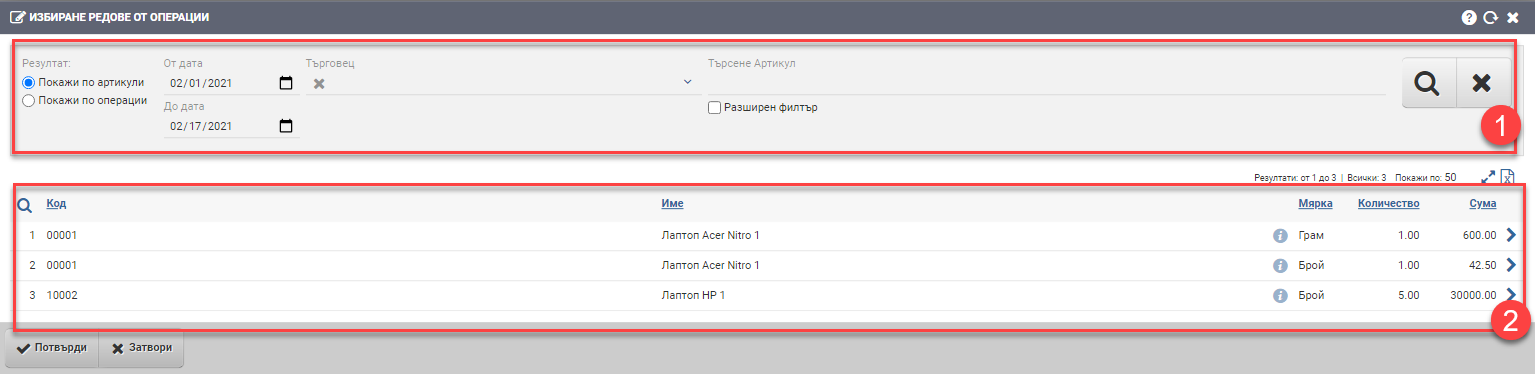
The filter (1) consists of the following components that you use to manage the List (2):
| Filter | Description |
| From date By date | You filter based on what the issue date is of the financial document you want to credit. |
| Merchant | Filter based on the Merchant specified in the financial document. |
| Search Item | Free item search by code or name. |
| Advanced filter | Adds additional filters by: – Categories – Brand – Characteristics |
The key to functionality is managing the way results are displayed – by item or by operation in the Filter (1). Depending on what is selected, List (2) will show you a different result:
List by items (2)
The system shows you List (2) with all items that have a financial document issued by/to the Contractor:
| Column | Description |
| Code | Article code |
| Name | Item name |
| Measure | Measure of the item |
| Quantity | Quantity of item |
| Sum | The amount, including VAT, of all financial documents issued to the contractor involving the item |
Once you have selected an item to reverse price or stock, you need to select which specific document you will credit from. To do this, you need to click on the arrow at the end of the row, which will redirect you to the interface for selecting it.
For each type of credit, the interface contains a list of financial documents with the following columns:
| Column | Description |
| Document number | Number of the financial document you invoiced with |
| Date | Date of the financial document |
| Code | Article code |
| Name | Item name |
| Description | Item description |
| Measure | Measure of the item in the financial document |
| Quantity | The original quantity in the issued financial document – for example you have sold 5 laptops, here it will say 5. |
| Storm quantity | Shows what is the maximum amount you can credit. In case of price credit it is always 1, for example – you have 5 laptops invoiced for a total of 10 000 BGN. The quantity will always be 1 because you will only add one line in the credit with some value. In the case of a stock credit, the quantity will be equal to the invoiced quantity, for example you have invoiced 5 laptops for a total value of 10 000 BGN. If you want to credit 2 of the 5, you would need to add a line in the credit line with 2pcs. Latops for a total value of 4 000lv. |
| Sum | Amount of financial documents |
| Storm amount | Shows the maximum amount you can credit. |
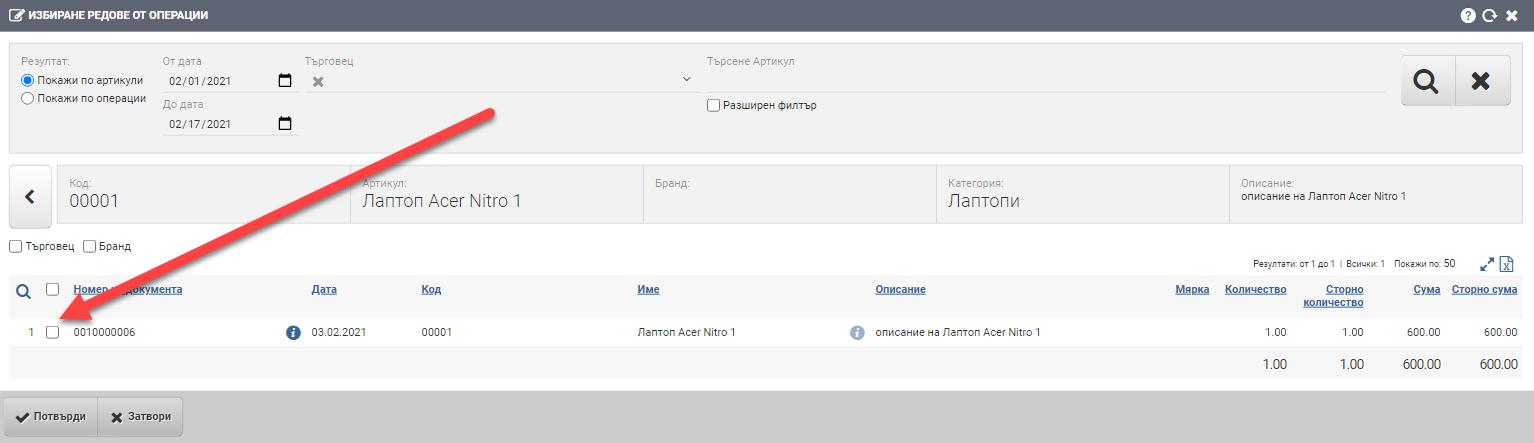
You select which financial document or documents to credit by placing checks in the List, then add the line with the Confirm button. When you have finished adding, you close the Select Items/Operations interface and in the Credit Finance Document, you specify how many items you will credit in the Stored Quantity column (for a Stock Credit) or what price you will credit in the Stored Amount column (for a Price Credit).
List by operation (3)
The view by operations is the same as the second step in the view by items. It works in the same way and contains the following columns:
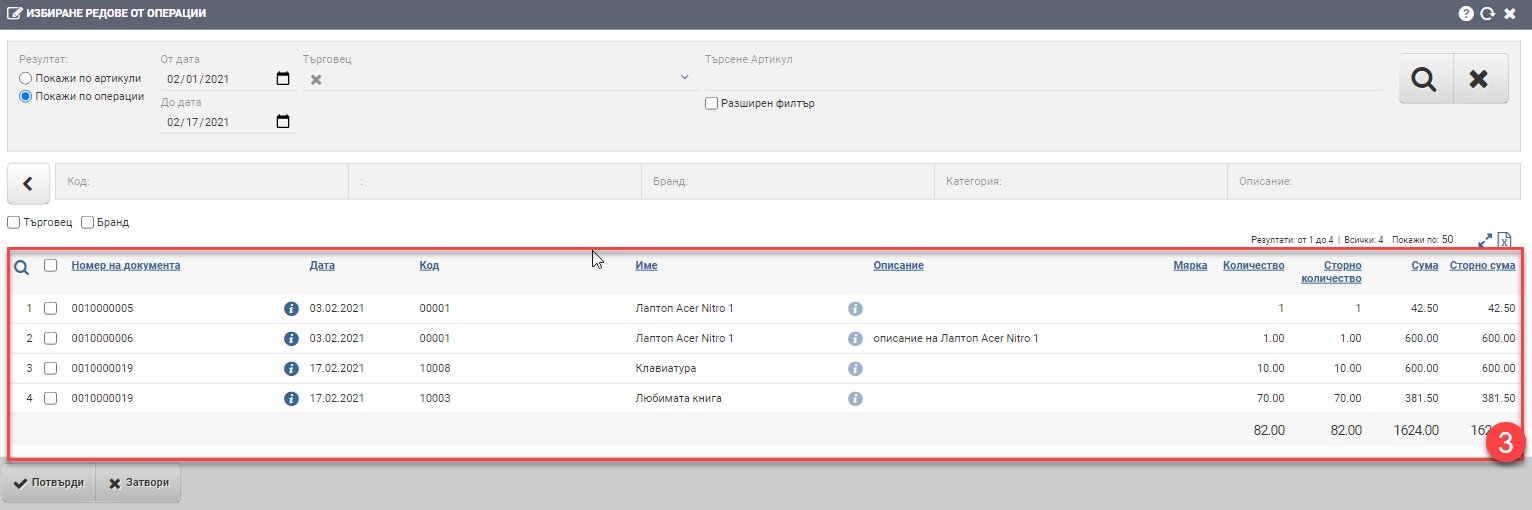
| Column | Description |
| Document number | Number of the financial document you invoiced with |
| Date | Date of the financial document |
| Code | Article code |
| Name | Item name |
| Description | Item description |
| Measure | Measure of the item in the financial document |
| Quantity | The original quantity in the issued financial document – for example you have sold 5 laptops, here it will say 5. |
| Storm quantity | Shows what is the maximum amount you can credit. In case of price credit it is always 1, for example – you have 5 laptops invoiced for a total of 10 000 BGN. The quantity will always be 1 because you will only add one line in the credit with some value. In the case of a stock credit, the quantity will be equal to the invoiced quantity, for example you have invoiced 5 laptops for a total value of 10 000 BGN. If you want to credit 2 of the 5, you would need to add a line in the credit line with 2pcs. Latops for a total value of 4 000lv. |
| Sum | Amount of financial documents |
| Storm amount | Shows the maximum amount you can credit. |
From the list, select which financial document or documents to credit by checking the Confirm button, then add the line. If you have finished adding, you close the Select Items/Operations interface and in the Credit Finance Document, you specify how many items you will credit in the Stored Quantity column (for a Stock Credit) or what price you will credit in the Stored Amount column (for a Price Credit).
Note that lines invoiced only with a financial category, i.e. not for specific items/services, only appear on the lists when the credit is price-based!
To save your changes, you need to click the Confirm button. If you want to exit without saving your changes, you need to click the Close button.